
Figma and Canva: Where imagination takes shape.
If you’re a beginner stepping into the world of graphic design, UI/UX design, or digital content creation, you’ve probably asked yourself: Should I learn Figma or Canva?
It’s a common confusion—and honestly, most beginners make the mistake of choosing the wrong tool at the wrong time.
Here’s the truth: Figma and Canva are not direct competitors. They are designed for different purposes and different stages of your learning journey. Canva helps you create designs quickly and easily, while Figma helps you build real, professional design skills.
In this complete beginner-friendly guide, you’ll learn the key differences between Figma and Canva, follow a step-by-step learning path, and understand exactly which tool you should start with based on your goals.
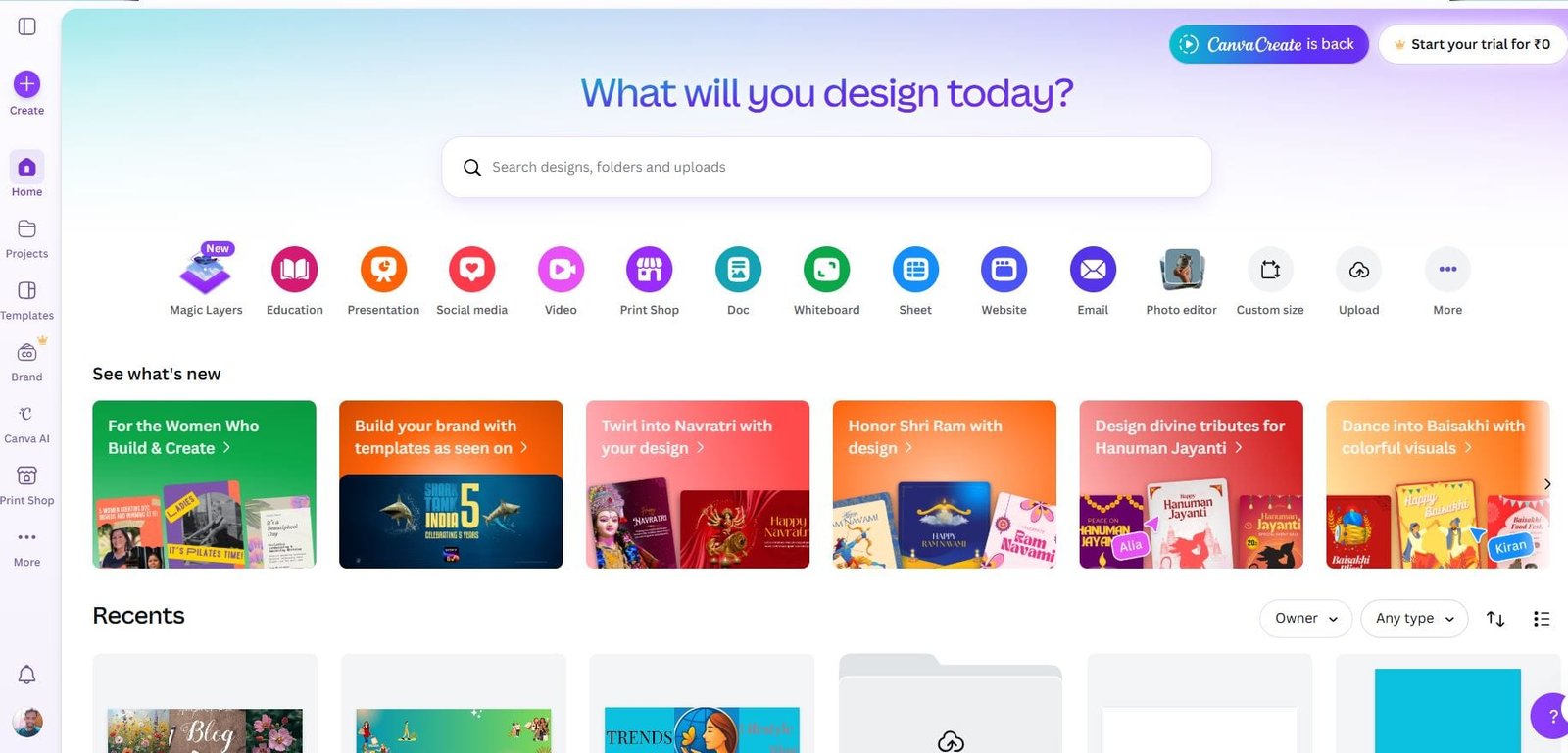
What is Figma and Why Is It So Popular in 2026?
Figma is a powerful cloud-based design tool widely used for UI/UX design, website layouts, and mobile app interfaces. It allows designers to create, prototype, and collaborate in real time, making it one of the most in-demand tools in the design industry.
Figma has rapidly become one of the most in-demand design tools, especially in the field of UI/UX design. It is a cloud-based platform that allows users to design, prototype, and collaborate in real time, making it a preferred choice for designers, developers, and product teams.
Unlike basic design tools, Figma gives you complete control over your layouts, spacing, typography, and components. This level of control is what makes it ideal for designing websites and mobile applications where precision and structure matter.
When you start using Figma, you’ll work on a blank canvas where everything is built from scratch. You can create frames (which act like screens or pages), add text, shapes, and images, and organize everything using layers. As you progress, you can even create interactive prototypes that simulate how a real app or website would function.
Although Figma has a slightly higher learning curve compared to beginner tools, it rewards you with professional-level skills that are highly valuable in the design industry. If your goal is to become a UI/UX designer or work on real-world digital products, Figma is a must-learn tool.
What is Canva and Why Do Beginners Love It?
Canva is one of the easiest design tools available today. It is built for beginners who want to create beautiful designs quickly without learning complex design systems.
Canva is designed for simplicity, speed, and accessibility. It allows users with no prior design experience to create visually appealing graphics using ready-made templates and an easy drag-and-drop interface.
From Instagram posts and YouTube thumbnails to resumes and business presentations, Canva covers a wide range of design needs. This versatility is what makes it extremely popular among students, content creators, freelancers, and small business owners.
Instead of starting from a blank canvas, Canva lets you choose from thousands of templates. You simply pick a design, customize the text, adjust colors, and add elements like icons or images. Within minutes, you can create something that looks professional without needing advanced design knowledge.
Another major advantage of Canva is its built-in resource library, which includes fonts, stock images, illustrations, and design elements. This removes the hassle of sourcing assets externally and makes the entire design process faster and more efficient.
If your goal is quick results without a steep learning curve, Canva is easily one of the best tools you can start with.
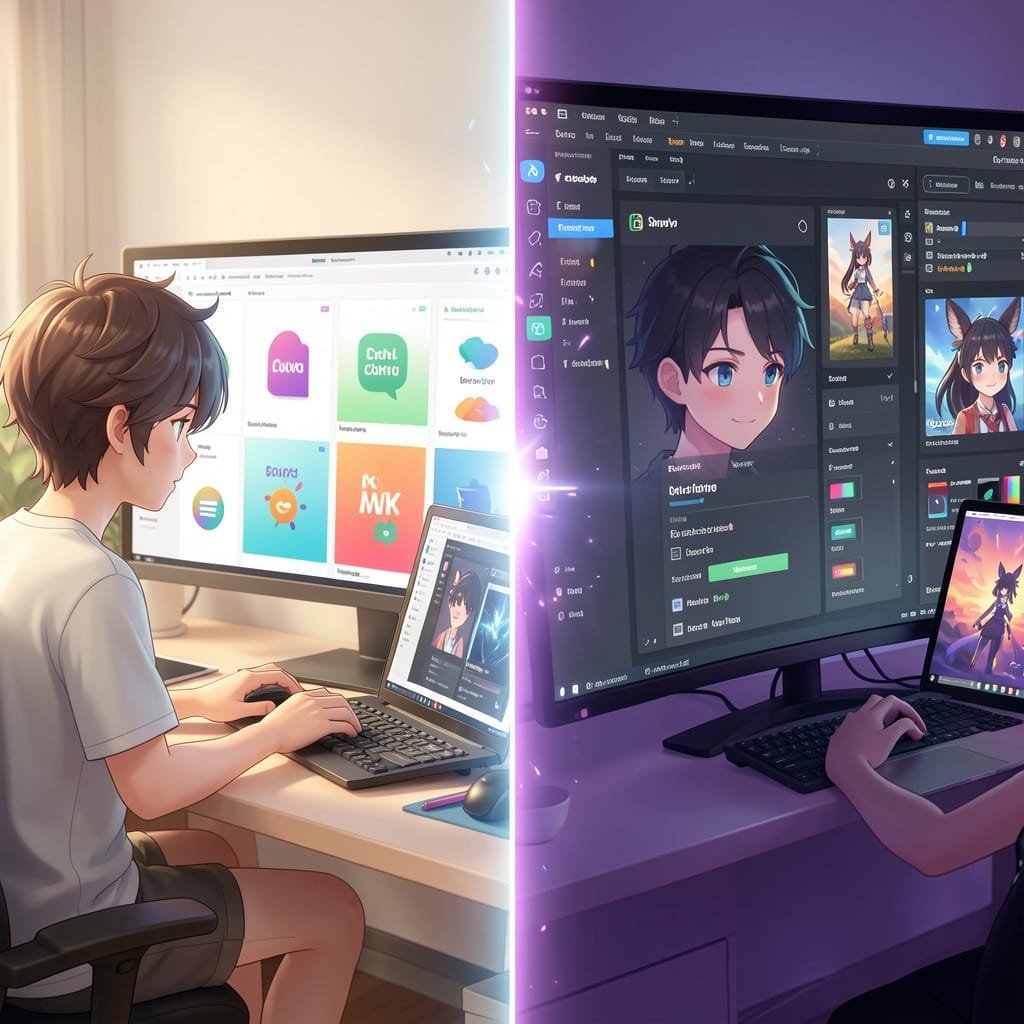
Figma vs Canva: The Real Difference
The comparison between Figma and Canva becomes clear when you look at their purpose. Canva is focused on speed and ease of use, while Figma is focused on flexibility and professional design workflows.
Canva offers a huge collection of templates that allow you to create designs instantly, whereas Figma requires you to build everything from scratch. This makes Canva ideal for quick tasks like social media content, while Figma is better suited for detailed projects like website and app design.
In terms of the learning curve, Canva is extremely beginner-friendly and can be mastered quickly. Figma, however, requires patience and consistent practice, especially when learning advanced features such as components, auto-layout, and prototyping.
Another important difference is creative control. While Canva simplifies design decisions through templates, Figma gives you complete freedom to customize every detail. This is why professionals prefer Figma for complex and scalable design projects.
Use Figma if:
- You want to learn UI/UX design
- You’re serious about a design career
- You want to design websites or apps
Use Canva if:
- You need quick designs
- You’re a student, marketer, or business owner
- You don’t want a steep learning curve
Step-by-Step Learning Path
Phase 1: Start with Canva (Build Confidence First)
When you’re starting, your goal is simple: start creating without fear.
Open Canva, choose a template (like an Instagram post), and begin editing. Change the text, adjust colors, and experiment with layouts. Within minutes, you’ll have a complete design.
Now take it a step further. Try creating:
- A social media post
- A simple poster
- A presentation slide
Don’t aim for perfection. Focus on understanding:
- How colors work together
- How text and spacing affect design
- How layouts are structured
This phase builds your creative confidence—and that’s more important than technical skills at the beginning.
Phase 2: Move to Figma (Build Real Skills)
Once you feel comfortable with Canva, it’s time to level up.
Open Figma and create a new design file. At first, the blank canvas might feel intimidating—but this is where real learning begins.
Start small:
- Add a frame (this acts like a screen)
- Insert text and shapes
- Experiment with alignment and spacing
Then move to a mini project:
Create a simple landing page:
- Heading
- Button
- Image section
This exercise teaches you how real layouts work. You’re no longer just editing—you’re designing from scratch.
As you continue, you’ll naturally learn concepts like hierarchy, spacing, and structure—all essential for UI/UX design.
Phase 3: Combine Both Tools (Work Smarter)
At this stage, you don’t need to choose between Figma and Canva—you use both strategically.
Use Canva when:
- You need quick designs
- You’re creating content regularly
- Speed matters
Use Figma when:
- You’re designing websites or apps
- You want full control
- You’re building professional skills
This combination is what most smart designers use.
Beginner Mistakes You Should Avoid
Most learners slow down their progress by making simple mistakes.
Trying to learn everything at once is one of the biggest ones. Instead of mastering tools, they jump between features without building a real understanding.
Another common mistake is relying only on tutorials without practicing. Watching videos feels productive, but real learning happens when you actually create something.
Also, many beginners start directly with advanced tools like Figma and feel overwhelmed. That’s why starting with Canva first gives you a smoother learning curve.
Keep it simple: learn → practice → repeat.
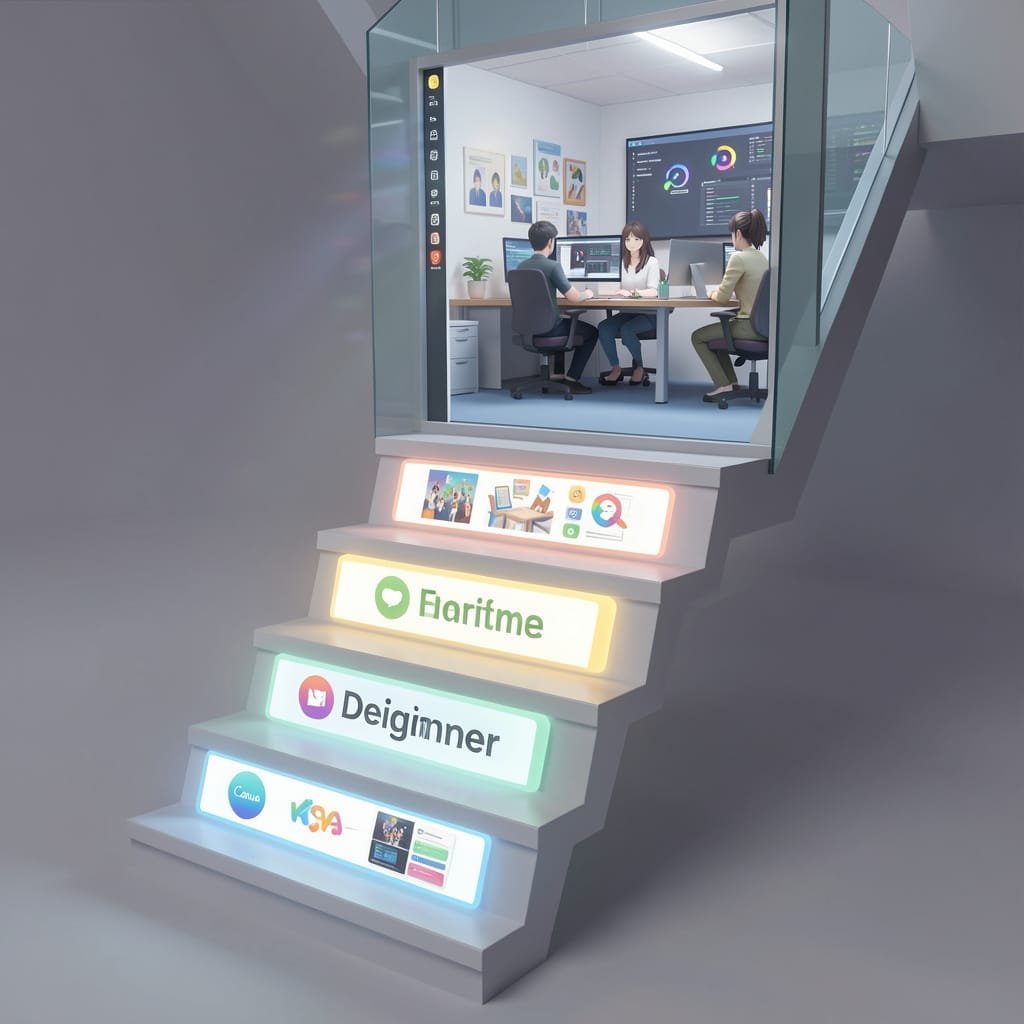
What Should You Learn First?
If you’re still wondering which tool is right for you, let’s simplify it with real clarity.
There is no “one better tool”—there is only the right tool for your goal.
If your goal is to create quick designs like Instagram posts, presentations, resumes, or marketing content, then Canva is the perfect choice. It saves time, removes complexity, and helps you create visually appealing designs without needing technical skills. This makes it ideal for students, content creators, and small business owners who want fast and effective results.
On the other hand, if your goal is to design websites, mobile apps, or build a career in UI/UX design, then Figma is the better option. It gives you complete control over your designs and helps you learn real design principles like layout, spacing, and structure—skills that are highly valuable in the professional world.
However, the smartest approach is not choosing one and ignoring the other.
Start with Canva to understand basic design concepts and build confidence. Once you are comfortable, move to Figma to develop advanced skills and work on real-world projects. This step-by-step transition makes learning smoother and prevents overwhelm.
In simple terms:
Use Canva for speed and simplicity
Use Figma for depth and professional growth
If you follow this path, you won’t just learn tools—you’ll build a complete design skillset that grows with you.
At this point, you don’t need more information—you need action.
You’ve understood the difference between Figma and Canva, explored how each tool works, and discovered a clear path to follow. Now it comes down to one simple decision: will you start, or will you wait?
Every skilled designer you see today once started as a beginner. They didn’t wait to feel confident—they opened the tool, made mistakes, learned, and kept going.
You don’t need perfect designs. You don’t need advanced skills. You just need to begin.
Create your first design in Canva. Try a simple layout in Figma. Improve a little every day. That’s how real progress happens.
Because in the end, tools don’t make designers—consistent practice does.
So start today. Stay consistent. And turn your curiosity into a real, valuable skill.
Want to continue learning?
Register and get practical tutorials, tips, and real-world projects.
Register